Opening settings
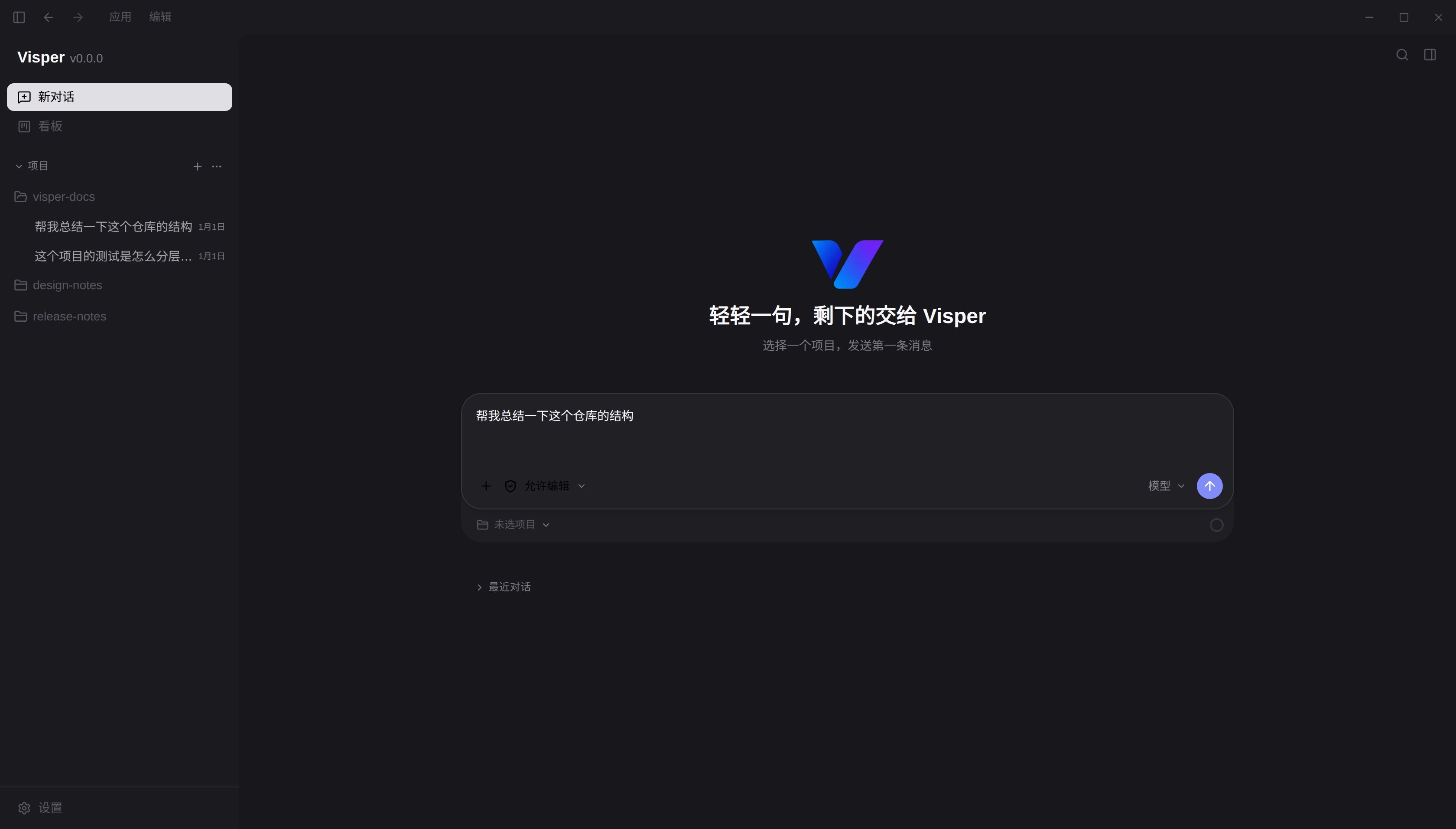
Click Settings (the gear) at the bottom-left of the sidebar. Section navigation is on the left of the panel, the options for the selected section on the right.Appearance
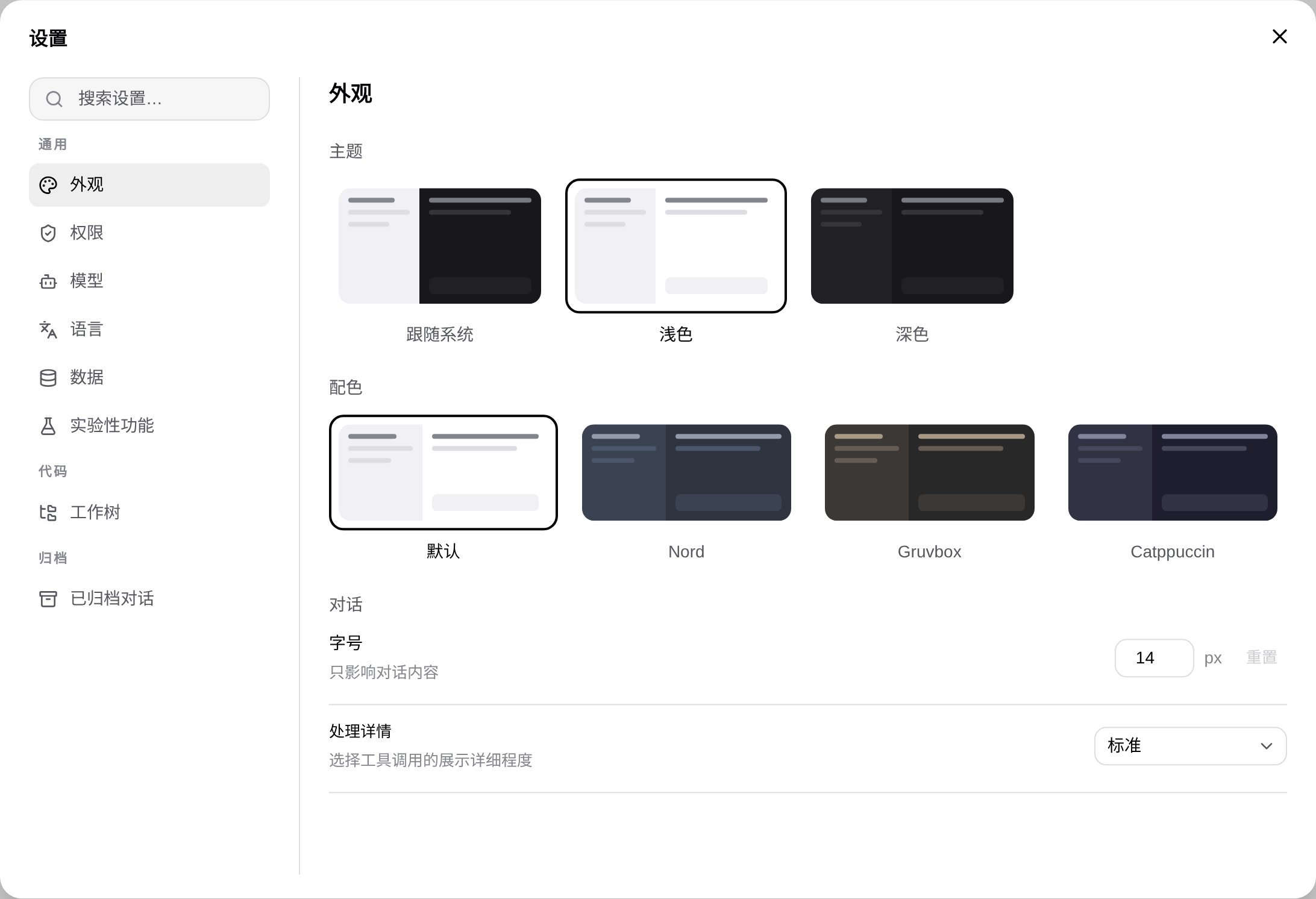
Appearance decides whether the app is light or dark:- Follow system: follow the macOS/Windows light or dark setting.
- Light / Dark: force one of them, regardless of the system.
Appearance is owned by the main process because it drives Electron’s native controls (window
buttons, menus), so it is remembered and restored on the next launch.
Color scheme
A color scheme only repaints the neutral palette (surfaces, panels, borders, text); the brand and semantic colors stay as they are:
The color scheme is a renderer-only preference, stored per appearance: Nord in light and Nord in
dark are two separate settings.
The appearance section also holds two reading preferences: font size affects the conversation
content only, and Work details decides whether tool calls fold into a summary or stay expanded.
Permission
Sets the permission mode a new chat starts in: read-only, edit allowed (the default) or full access. It only decides where a new chat begins; an existing chat switches on its own composer and never writes back here. The three modes are compared in Chat · Permission modes.Models
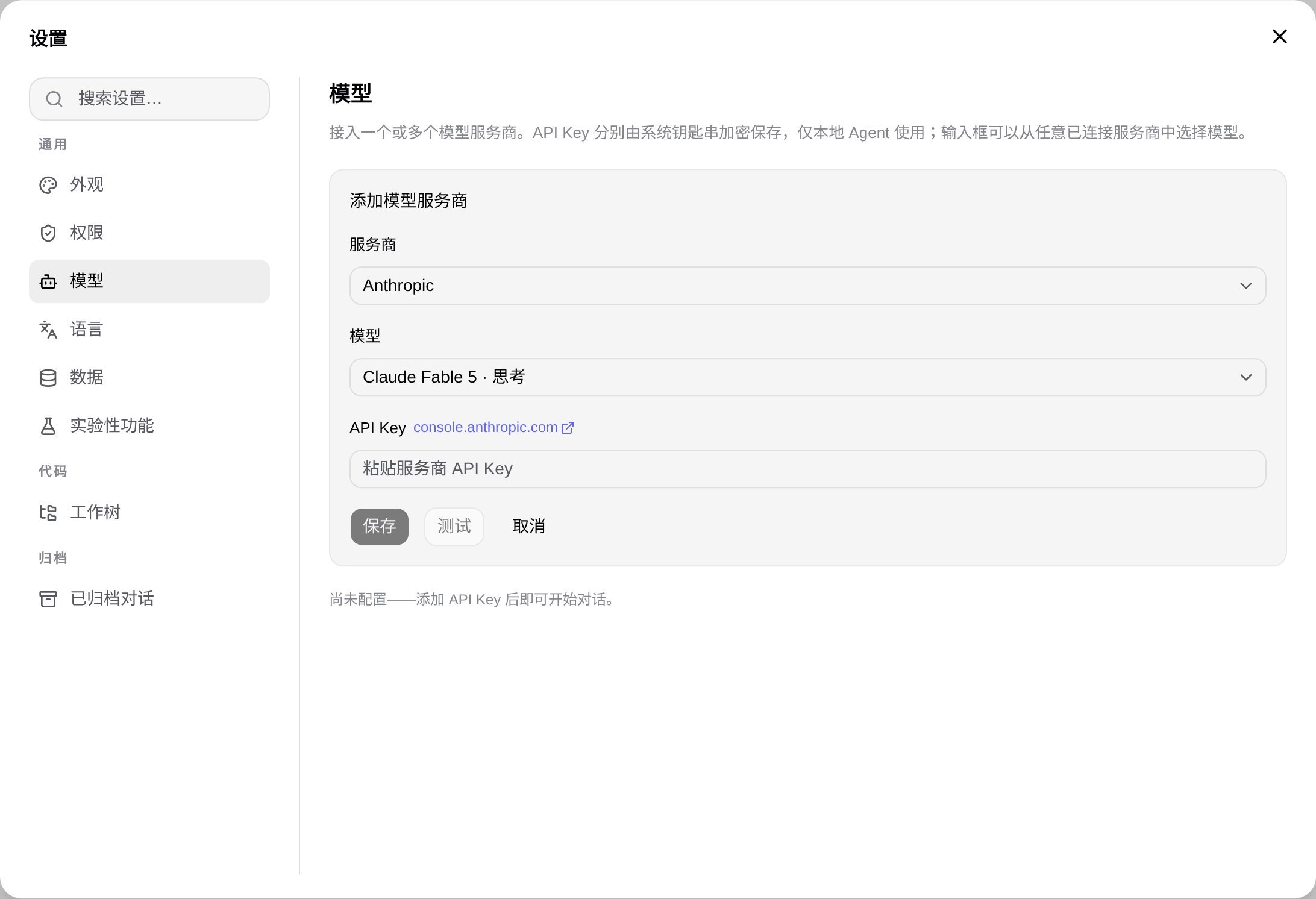
The models section decides which model answers. Pick a provider and a model, paste that provider’s API key, and click Save.- The API key stays on this machine: it is written to an owner-only file in the app data directory and is never shown back in the interface or written to a log. It is not encrypted, so treat it like any other local secret — see Data and privacy.
- Test makes a real request to the provider; a green check appears next to the key when it passes, and disappears as soon as the provider, model or key changes.
- After switching provider or model, the next send uses the new configuration; a reply in progress is aborted.
- The provider list comes from the built-in model catalog and only lists providers that accept an API key.
Language
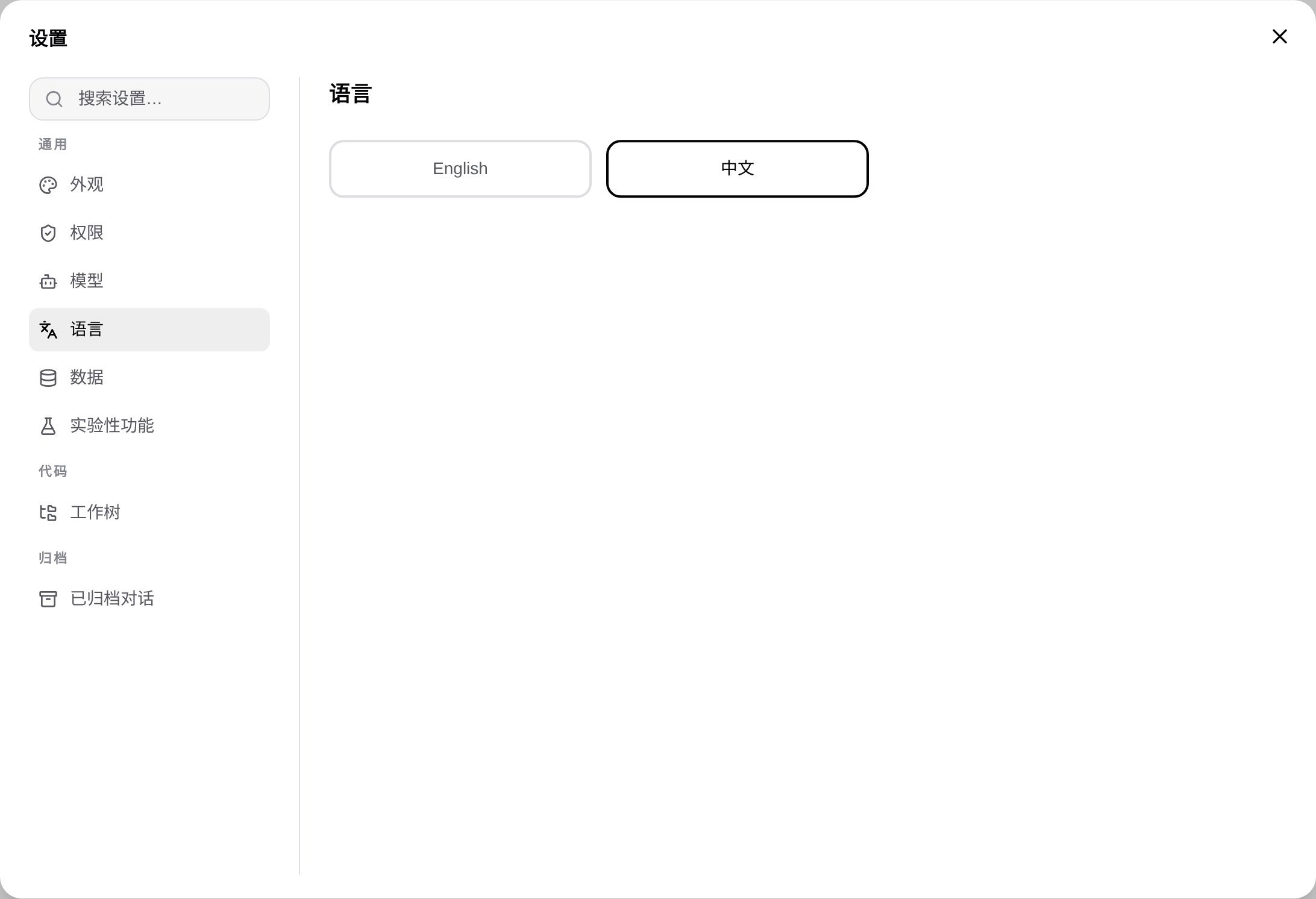
Settings → Language switches between 中文 and English; interface copy updates immediately, with no restart.