

Connect a model first. Open Settings → Agent, pick a provider and model, and paste its API
key. Send without one and the composer warns
Agent is not configured...; nothing is sent.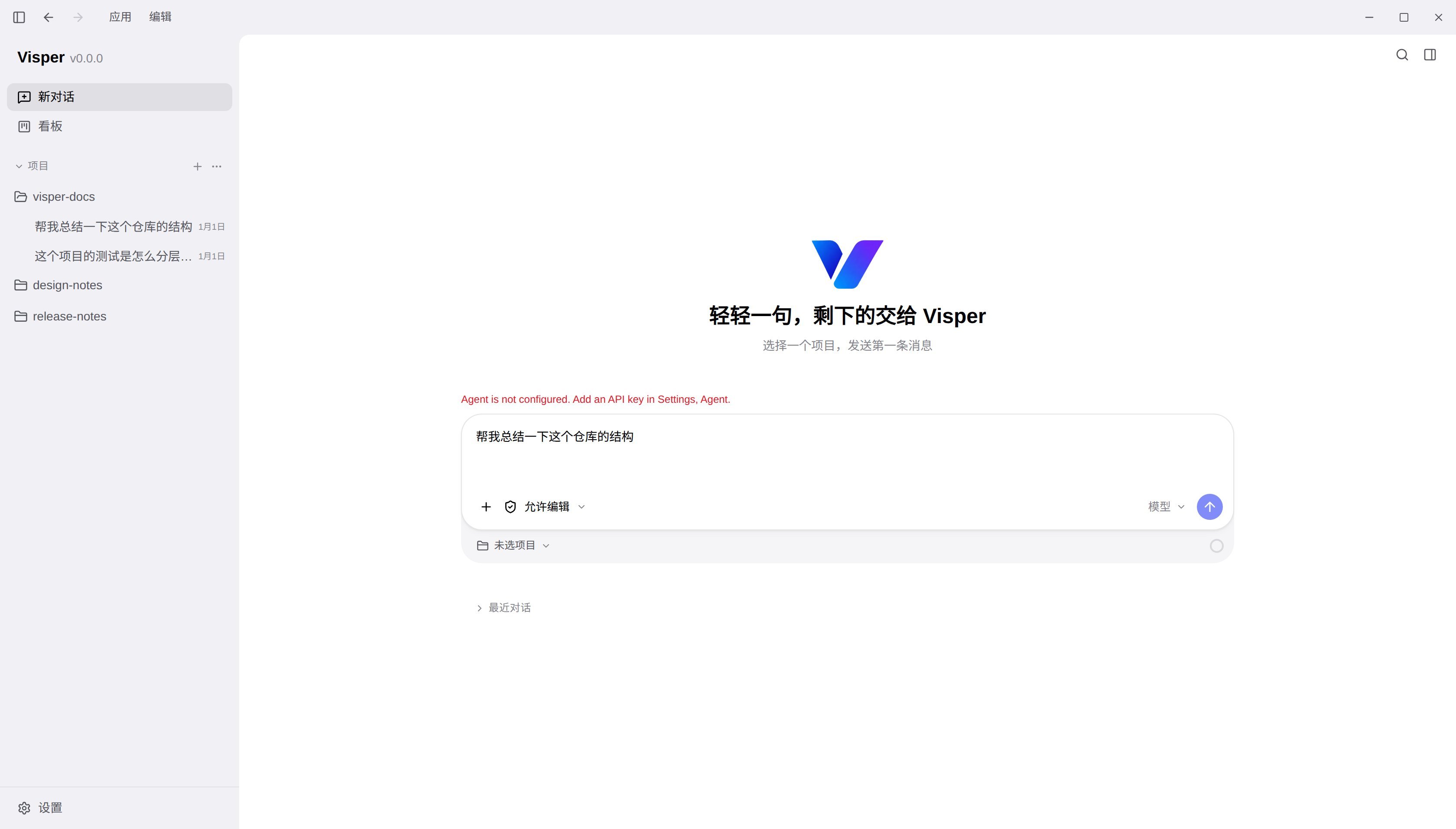
Sending a message
1
Click the composer at the bottom
The whole card is clickable, not just the text field.
2
Type your message
Multi-line input is fine. Shift + Enter adds a line instead of sending.
3
Press Enter or click send
Leading and trailing whitespace is trimmed; the composer clears once the message is sent.
4
Wait for the reply
The reply streams in, and each tool call shows as running, done or failed.

Sending while a reply is running
While a reply is being generated the composer still accepts text, and the way you send decides where the message goes:- Enter or the send button: queued. It is sent as the opening of the next turn once the current one finishes.
- Ctrl/⌘ + Enter: steer. The current turn sees it at its next step instead of waiting for the end.
- Queued messages appear above the composer. Each one can be steered into the current turn with “Send now”, edited in place with the pencil (Enter saves, Shift+Enter adds a line, Esc cancels), or removed from the queue with the bin icon.
- The send button only turns into the stop square while the composer is empty; with a draft the primary action stays send. Esc also stops the run, which clears the queue along with it.
Attaching images
Three ways to get an image into the composer:- Click the
+at the left of the toolbar and pick one or more images; - take a screenshot and paste it into the composer;
- drag an image file anywhere onto the window: the whole window blurs with a drop hint, and dropping adds it.
× in
its top-right corner to remove it. A message carries at most 10 images of roughly 10 MB each;
going over says why. Nothing has to be aimed at the composer — dragging anywhere on the chat page
shows the full-window hint.
The model receives the images and the text together, and images with no words are fine. The
thumbnails render above the text bubble, outside it; click one to enlarge it, and with several
images step through them with the arrows in the preview (or the ← / → keys). The × in the
preview’s top-right corner closes it. Right-click a thumbnail or the enlarged image for
Copy image (PNG / JPEG) or Save image as… (every supported format). Images are stored with
the chat, so they survive a reload or a restart.
The composer controls
Apart from the text field, image attachments, permission, send and stop, these are interface
placeholders for now.
Permission modes
The permission control at the left of the composer decides what the agent may do and whether it has to ask first. The three modes are remembered per chat:
The prompt names the tool and what it is about to do. A refusal goes back to the agent as a failed
call, so it can pick another route. The default for new chats is set in Settings → Permission;
an existing chat can still switch on its own composer.
Replies and tools
- A reply is plain assistant text that grows as it is generated, with no bubble of its own; only your messages and the tool calls have one. You can read what exists before the turn ends.
- Assistant replies are Markdown: headings, lists, tables, links, inline code and code blocks
all render, so you never see the raw
**or##; code blocks are monospaced only, without syntax highlighting. - The model’s reasoning stays out of the reply: an assistant row has a “Thinking” line above it, collapsed by default, that shows this step’s reasoning when opened. While it thinks the line cycles an ellipsis, and when it settles it reads “Thought for 12s”; the duration is measured within this run only, and reverts to a plain label when the chat is reopened. The higher the effort setting, the longer that fold usually is.
- The agent reads files, runs commands and edits files. Every tool call is one row — tool name
plus a summary of the call, such as
bash $ pnpm test— and a failure appends the error to the same row. - Read-only calls (reading a file, searching, listing a directory) never interrupt you in any mode; only calls that change files or execute commands can ask.
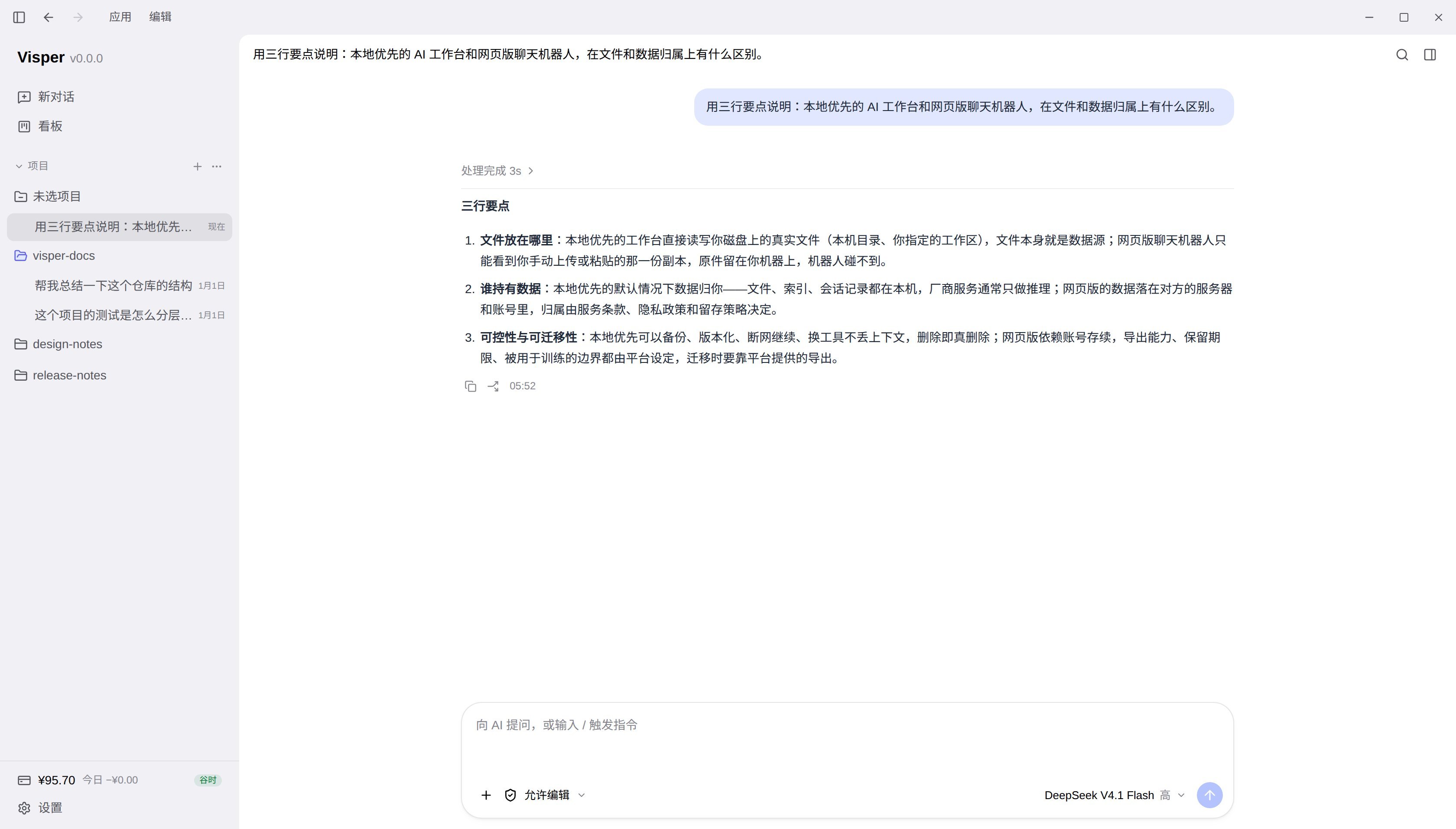
Two things can appear on the card while a reply runs: a Tasks list when the agent plans
multi-step work (see Tasks), and a question when it needs you to decide
something (see Questions from the agent).
Chats and project chats
A “session” under a project in the sidebar opens a chat inside that project’s workspace, with its own session state — it never mixes messages with the new-chat page. The important difference is that the agent’s working directory is that project’s folder, so reading files and running commands happen inside the project. Both share the same composer.Chats are stored on this machine as JSONL, so they are still in the session list after a reload or
a restart. A reload also restores the workspace to the page, project and chat you were on; closing
the window and reopening it starts from “New chat”.
Forking a conversation
When a reply took a wrong turn and you want to try again from that point without losing the original, fork it.1
Hover the reply you want to branch from
The bar under a finished reply holds its timestamp, a copy button and the fork button.
2
Click the fork button
Its tooltip reads Fork chat. A new chat opens straight away, holding the conversation up to
that reply.
3
Carry on there
Say what you meant instead. The new chat runs on its own from that point.
- Only a finished reply has a fork button. A reply that is still streaming has no boundary to cut at, and question or tool rows are not messages you can branch on.
- Forking costs nothing. It copies the conversation, it does not call the model; the next message you send in the fork does.
- Files are not forked. A branch splits the conversation, not the project folder — anything the agent already changed is still changed, in both.
- Branches drift apart on purpose. After the fork the two chats share nothing: continuing one never changes the other.
Next steps
- Settings: configure a model and its API key
- Tasks
- Questions from the agent
- Projects
- Data and privacy